> ## Documentation Index
> Fetch the complete documentation index at: https://docs.instaforge.app/llms.txt
> Use this file to discover all available pages before exploring further.
# Booking page
> A page where customers book on their own, for the Instagram bio, the website, Google Maps and WhatsApp.
The booking page lets customers book without chatting: they pick a service, who they'd like, a free time, and leave a name and phone number. Nobody needs an account. It uses the same calendar, team, reminders and reviews as the assistant.
 ## Set it up
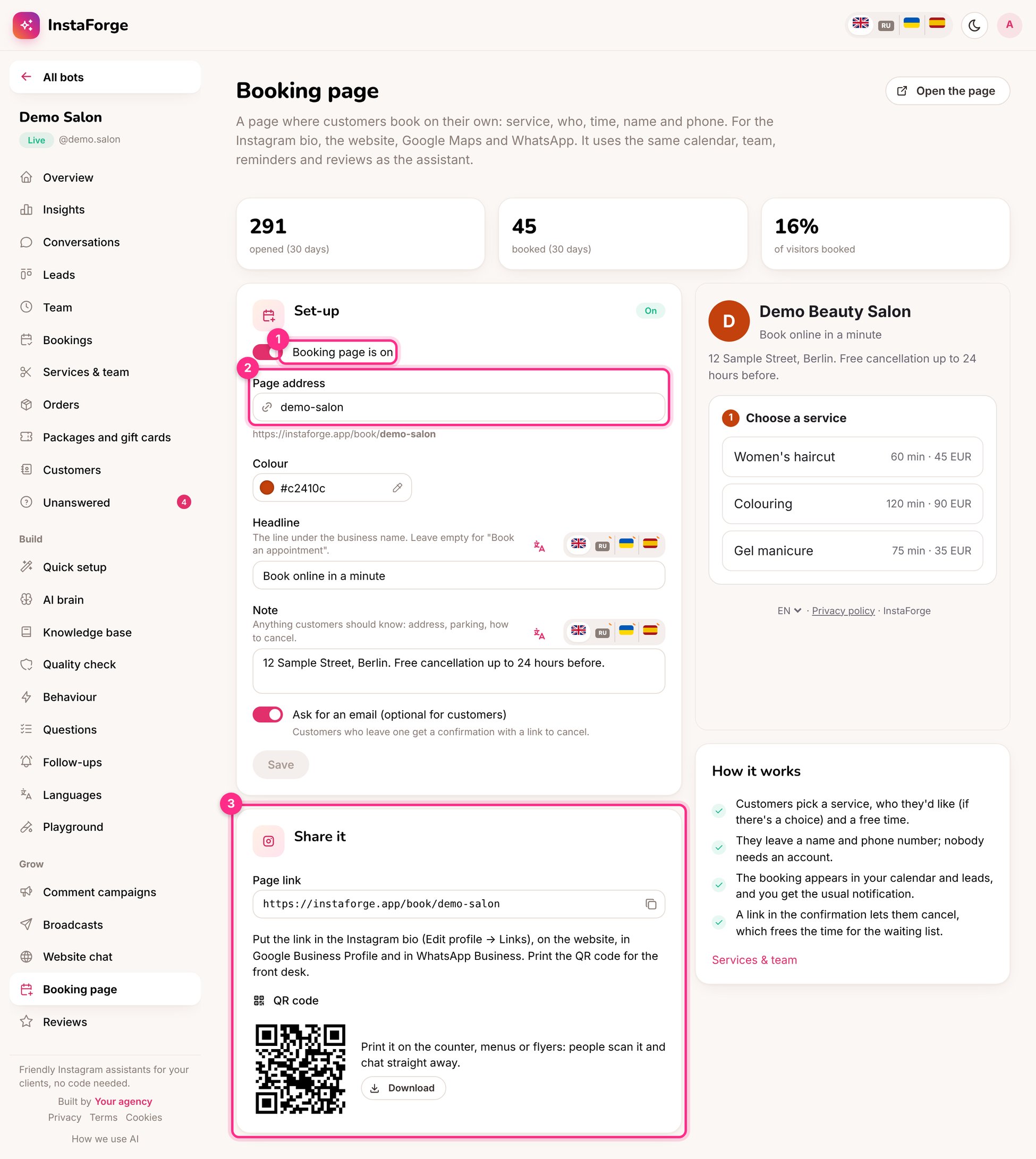
For example `demo-salon`. The page lives at `instaforge.app/book/demo-salon`.
The note is for anything customers should know: the address, parking, how to cancel.
Customers who leave one get a confirmation with a link to cancel, and can confirm by email.
Copy the link or download the QR code.
## What customers see
## Set it up
For example `demo-salon`. The page lives at `instaforge.app/book/demo-salon`.
The note is for anything customers should know: the address, parking, how to cancel.
Customers who leave one get a confirmation with a link to cancel, and can confirm by email.
Copy the link or download the QR code.
## What customers see
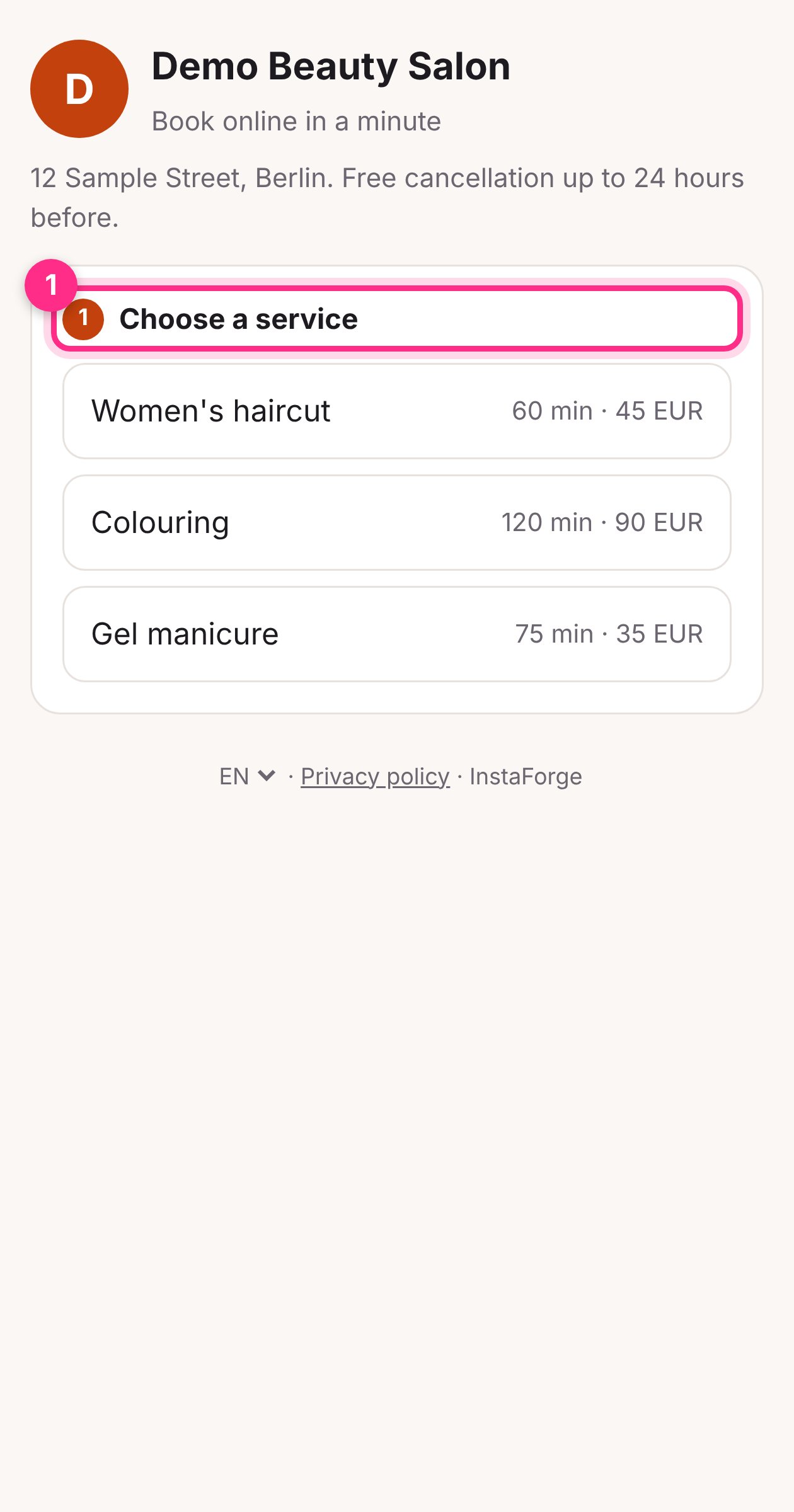
1. Choose a service (with its length and price)
2. Choose who, if there's a choice
3. Pick a free time
4. Leave a name and phone number, and optionally an email
5. Done: the booking appears in your calendar and leads, and you get the usual notification
A link in the confirmation lets them cancel, which frees the time for the waiting list.
## Where to put the link
* The Instagram bio: **Edit profile → Links**
* Google Business Profile, as the booking link
* WhatsApp Business: in the profile and as a quick reply
* The website, as a "Book now" button
* Printed on the counter, menus and flyers as a QR code
The numbers at the top show how many people opened the page and how many booked. If many open and few book, check the free times: customers often leave when nothing is free in the next three days.
The page shows in the customer's language and can be switched at the bottom. Fill in the headline and note in each language, or use [Languages](/build-the-assistant/languages).
This documentation is built and hosted on [Mintlify](https://mintlify.com), a developer documentation platform.