> ## Documentation Index
> Fetch the complete documentation index at: https://docs.instaforge.app/llms.txt
> Use this file to discover all available pages before exploring further.
# Roles and access
> Who can sign in, what each role can do and which assistants they see.
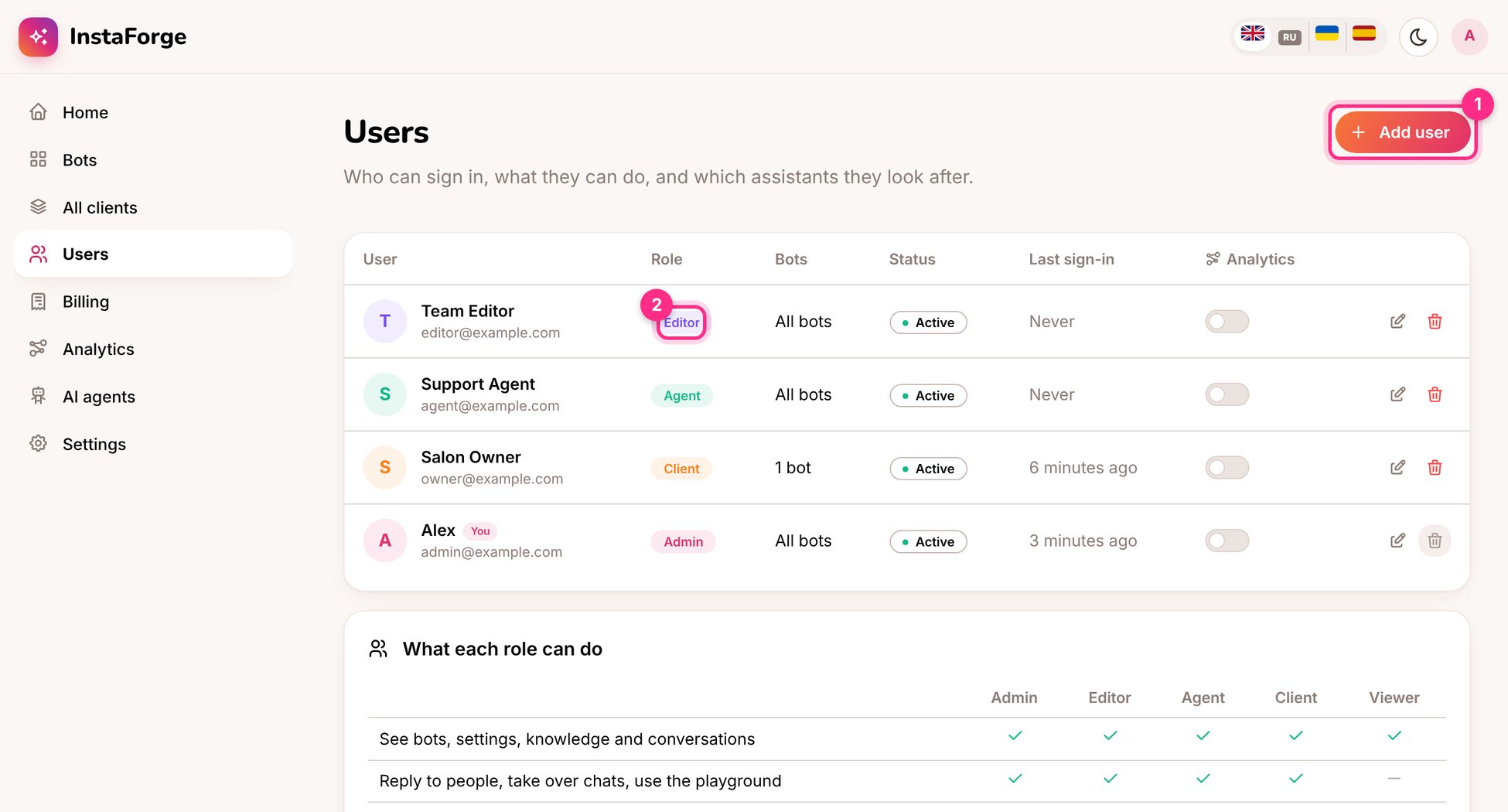
Everyone signs in with their own email and password. Each account has a **role**, and either sees **all bots** or only the bots you give it.
 | Role | Can do | Typical person |
| - | - | - |
| **Admin** | Everything, including users, billing, platform analytics, backups and branding | Agency owner |
| **Editor** | Builds and runs bots: settings, knowledge, rules, questions, posts, Instagram, data requests. Sees AI costs | Account manager, bot builder |
| **Agent** | Reads everything, replies to customers, takes over chats, uses the playground | Support person, receptionist |
| **Client** | The business owner's portal: their conversations, bookings, results and questions to answer. No set-up pages and no AI costs | The business owner or their staff |
| **Viewer** | Read only | Someone who only needs to look |
## Add a user
Enter their name and email, and choose the role.
Leave **All bots** on for your own team. For a client, switch it off and pick only their bot.
They get an email with a link to set their password. If email isn't set up on your server, copy the link and send it yourself.
Give people the lowest role that does the job. A receptionist who only answers chats should be an **Agent**, not an Editor.
## Signing in safely
Each person can turn on two-step sign-in with an authenticator app in **Settings → Sign-in and security**, and see and sign out the devices they're signed in on.
## Seeing all clients at once
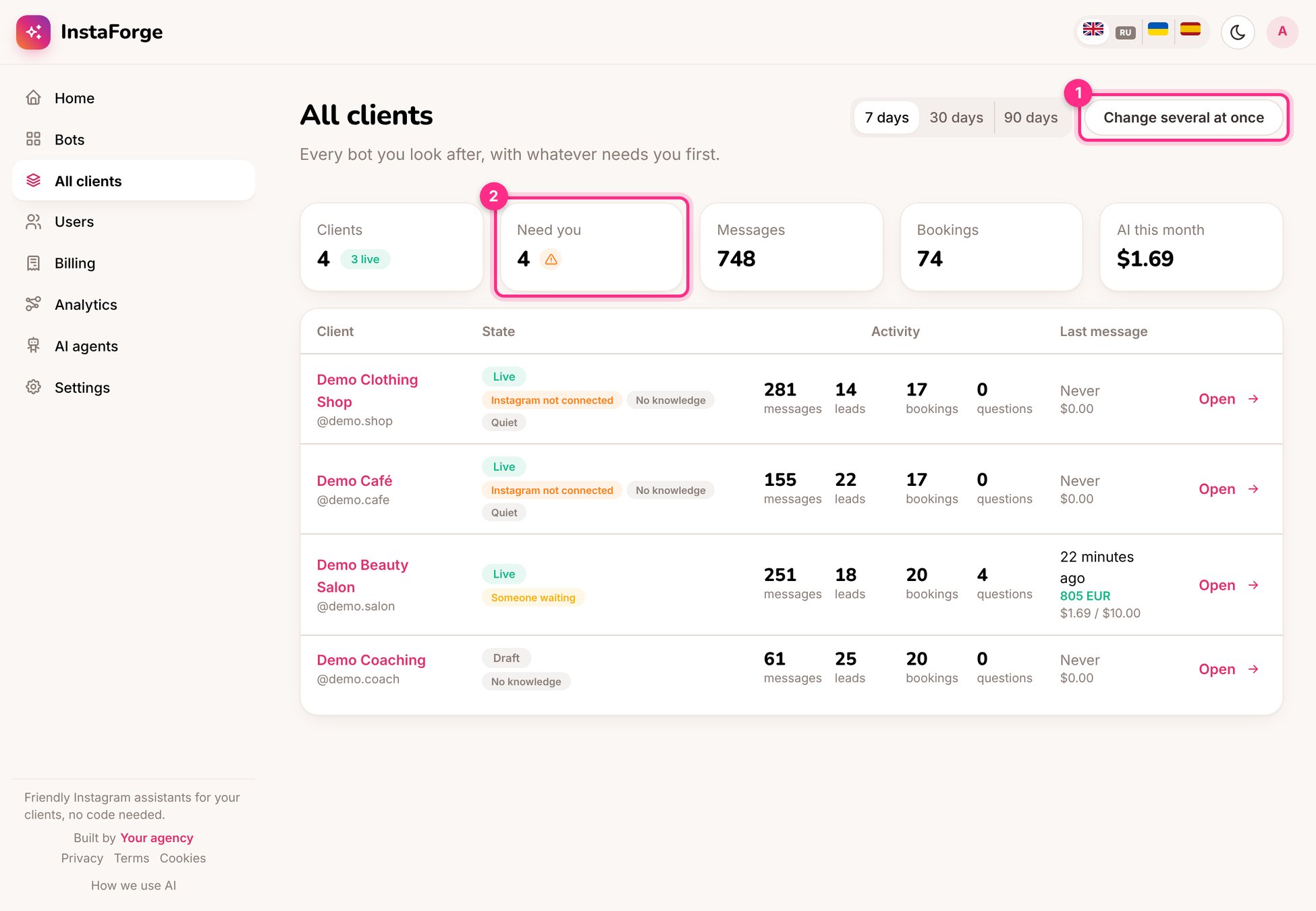
**All clients** lists every bot you look after, with what needs attention first, its activity and its AI spend this month. **Change several at once** applies the same FAQ answer or setting to many bots in one go, and records it in each bot's history.
| Role | Can do | Typical person |
| - | - | - |
| **Admin** | Everything, including users, billing, platform analytics, backups and branding | Agency owner |
| **Editor** | Builds and runs bots: settings, knowledge, rules, questions, posts, Instagram, data requests. Sees AI costs | Account manager, bot builder |
| **Agent** | Reads everything, replies to customers, takes over chats, uses the playground | Support person, receptionist |
| **Client** | The business owner's portal: their conversations, bookings, results and questions to answer. No set-up pages and no AI costs | The business owner or their staff |
| **Viewer** | Read only | Someone who only needs to look |
## Add a user
Enter their name and email, and choose the role.
Leave **All bots** on for your own team. For a client, switch it off and pick only their bot.
They get an email with a link to set their password. If email isn't set up on your server, copy the link and send it yourself.
Give people the lowest role that does the job. A receptionist who only answers chats should be an **Agent**, not an Editor.
## Signing in safely
Each person can turn on two-step sign-in with an authenticator app in **Settings → Sign-in and security**, and see and sign out the devices they're signed in on.
## Seeing all clients at once
**All clients** lists every bot you look after, with what needs attention first, its activity and its AI spend this month. **Change several at once** applies the same FAQ answer or setting to many bots in one go, and records it in each bot's history.
 This documentation is built and hosted on [Mintlify](https://mintlify.com), a developer documentation platform.