

Write once, translate the rest
You don’t have to write every text four times. Write it in one language and let the assistant’s AI fill in the others.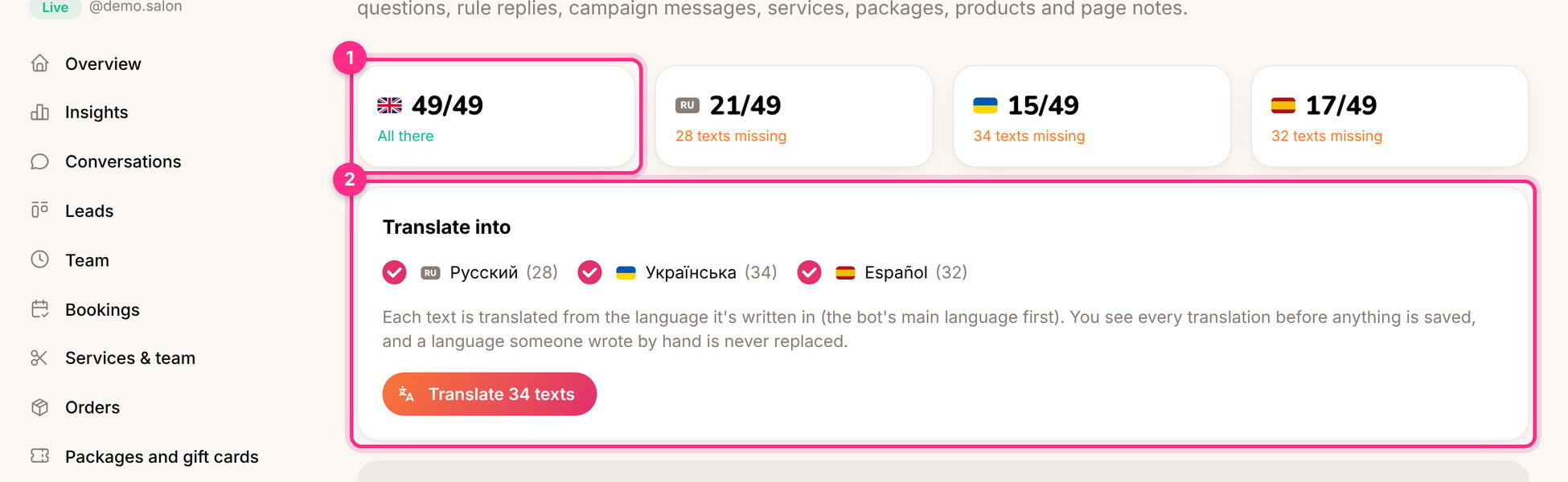
Languages: how complete each language is (1) and translating the missing texts (2)
1
Open Languages
The cards (1) show how many of the assistant’s texts exist in each language.
2
Choose the languages to fill in (2)
Tick the languages and click Translate. Each text is translated from the language it’s written in.
3
Review and save
Every translation is shown next to the original. Fix anything you like, then click Save translations. Only empty languages are filled; nothing you wrote by hand is ever replaced.
Next to any text field with language flags there’s a translate button. It fills in the empty languages for that one field.
Good to know
- Translations use the assistant’s own AI and are counted in its AI costs.
- Placeholders such as
{{username}}and links are kept as they are. - With Draft and publish on, translations are saved to the draft.
- The inbox can show any conversation in your language: switch on Translate into my language above the chat.