

Insights
Each assistant’s Insights page shows how the assistant is doing over 7, 30 or 90 days: new people, messages, how many the assistant handled on its own, leads, the value of bookings, people handed to the team and open questions. Below that, every feature that’s switched on has its own results: the website chat, the booking page, follow-ups, reviews, gift cards, the shop, referrals, moderation, how customers answered Did this help? and more.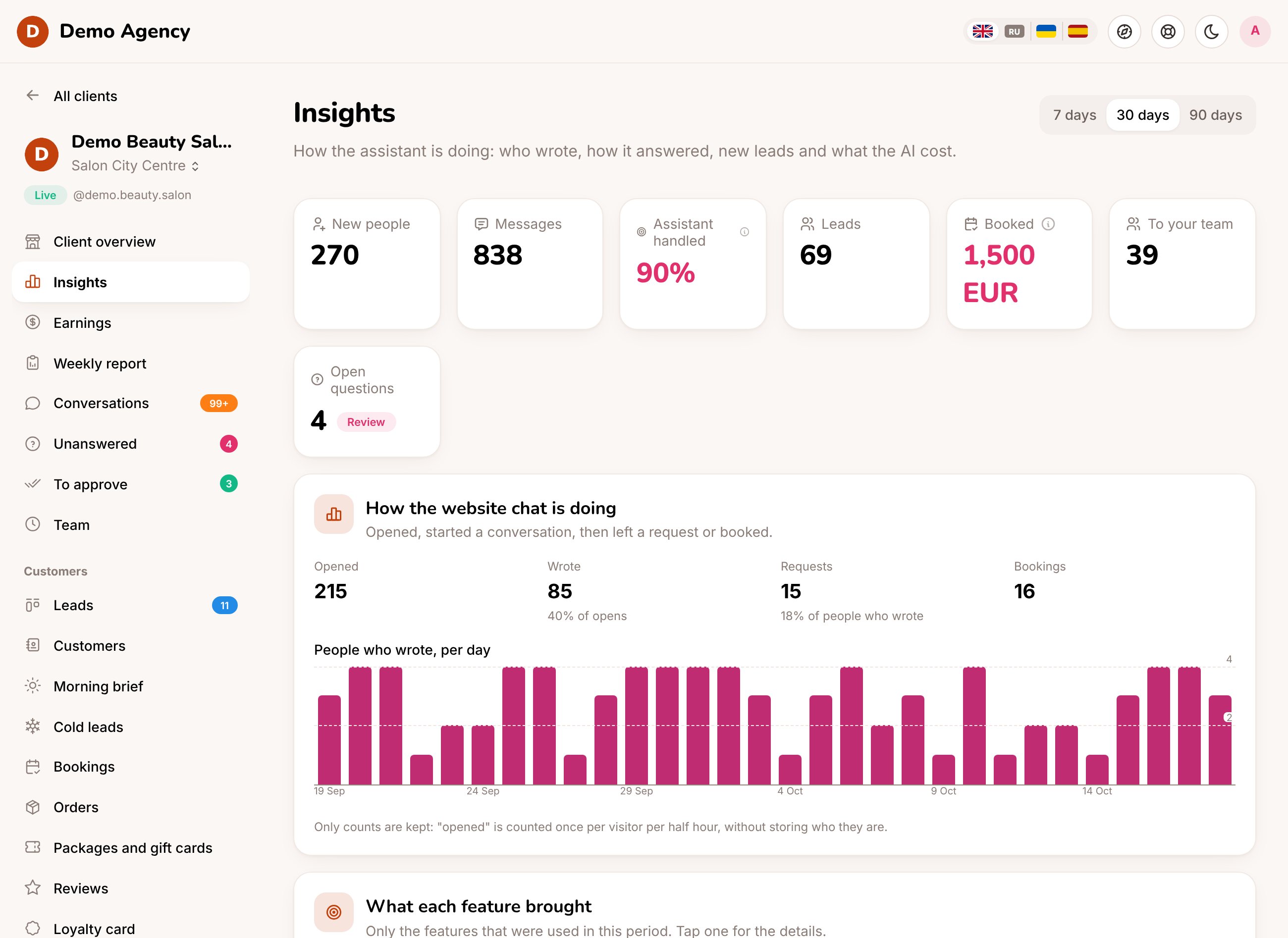
Insights
Monthly report for the client
On the 1st of each month the client gets an email with last month’s numbers: people who wrote, messages, how many the assistant answered, bookings, reviews, sales and the bookings and sales each feature led to. It also shows about how many hours the assistant saved the team, how many people wrote from a click-to-message ad and, when Did this help? is on, the share of customers who said the chat helped. The full picture is on the Earnings page. Add up to 10 addresses on the client’s Telegram & reports page and choose the report’s language. Each entry is one plain email address. Send to the client now and Send last month’s report to me send it straight away. Reports sent by hand reach at most 100 addresses a day for the whole agency, and the automatic report on the 1st doesn’t count toward that. A client with several assistants gets one report per assistant, each titled with the assistant’s name.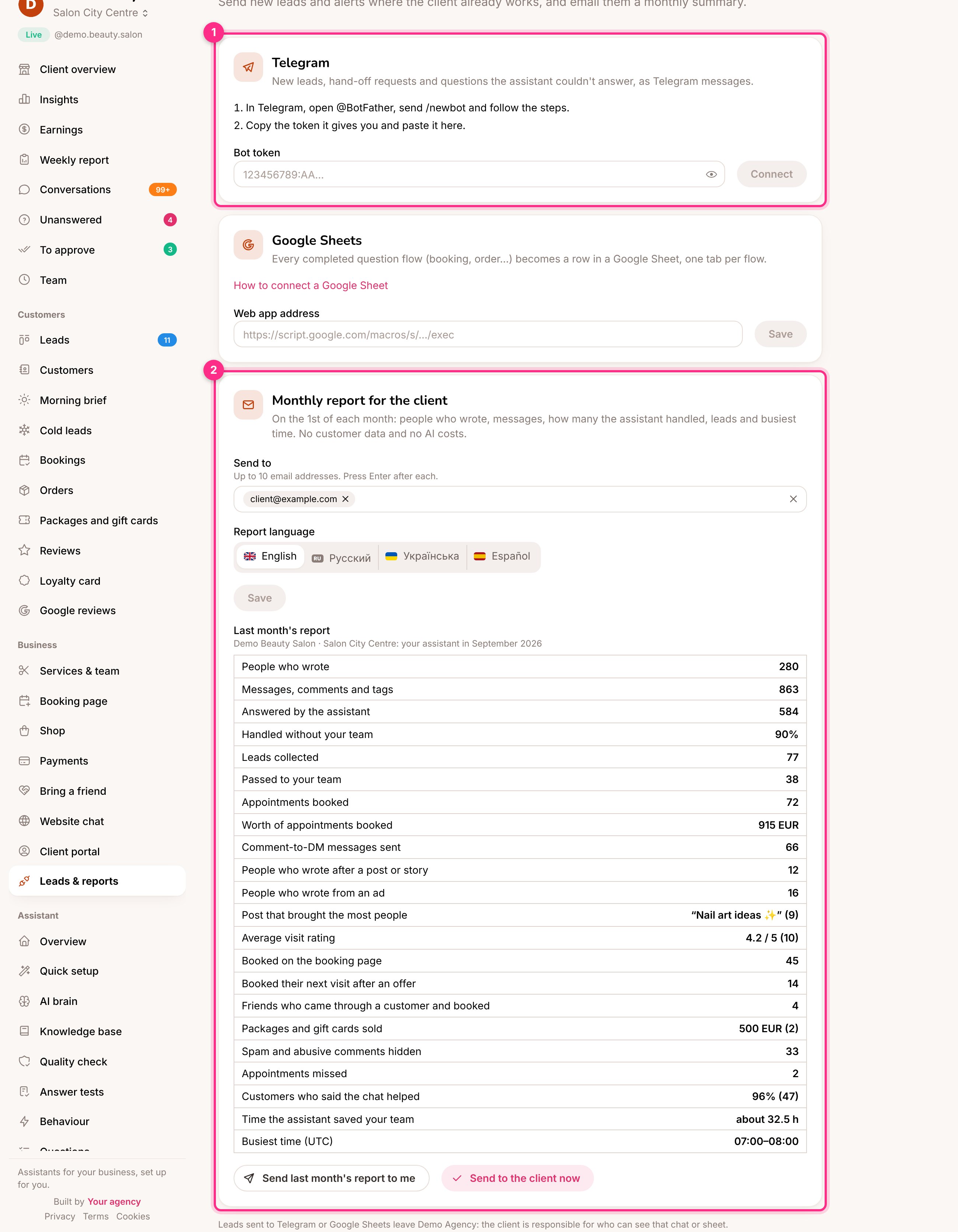
Telegram and reports: Telegram (1) and the monthly report (2)
Telegram for the client (1)
New leads, hand-off requests, questions the assistant couldn’t answer and new bookings, sent to the client’s own Telegram chat or group, so their team can catch up there. Under Send me, tick what goes there. The client’s assistants share it. The business owner can connect it themselves too: the Telegram page of their portal has only this setting. Turn that page off under Client portal if your team looks after it.1
Create a Telegram bot
In Telegram, open @BotFather, send
/newbot and follow the steps.2
Paste the token
Copy the token it gives you, paste it under Telegram and click Connect.
Google Sheets
Every completed flow (a booking request, an order) becomes a row in a Google Sheet. Follow How to connect a Google Sheet on the page and paste the web app address. The request column numbers a person’s requests in that flow: 1 for the first, 2 when they come back with a new one, and so on. The Telegram alert for a second or later request shows its number next to the flow’s name, and the flow’s webhook sends it asrun.
Answers that start with =, +, - or @ get a leading apostrophe, so whatever a customer types always lands in the sheet as plain text and never runs as a formula.