

Before you start
- The account must be an Instagram Business or Creator account.
- In the Instagram app, go to Settings → Messages and story replies → Message controls → Connected tools and allow access to messages.
- Your agency’s Meta app must have the Instagram product with Instagram login set up (done once by an admin).
Connect the account
1
Open the bot's Instagram page
In the bot menu, open Instagram.
2
Click Connect with Instagram (1)
The client logs in and approves. If the client isn’t with you, copy the link and send it to them; it works from their phone.
3
Check the result
The page shows the connected username. The assistant starts answering as soon as the bot is Live.
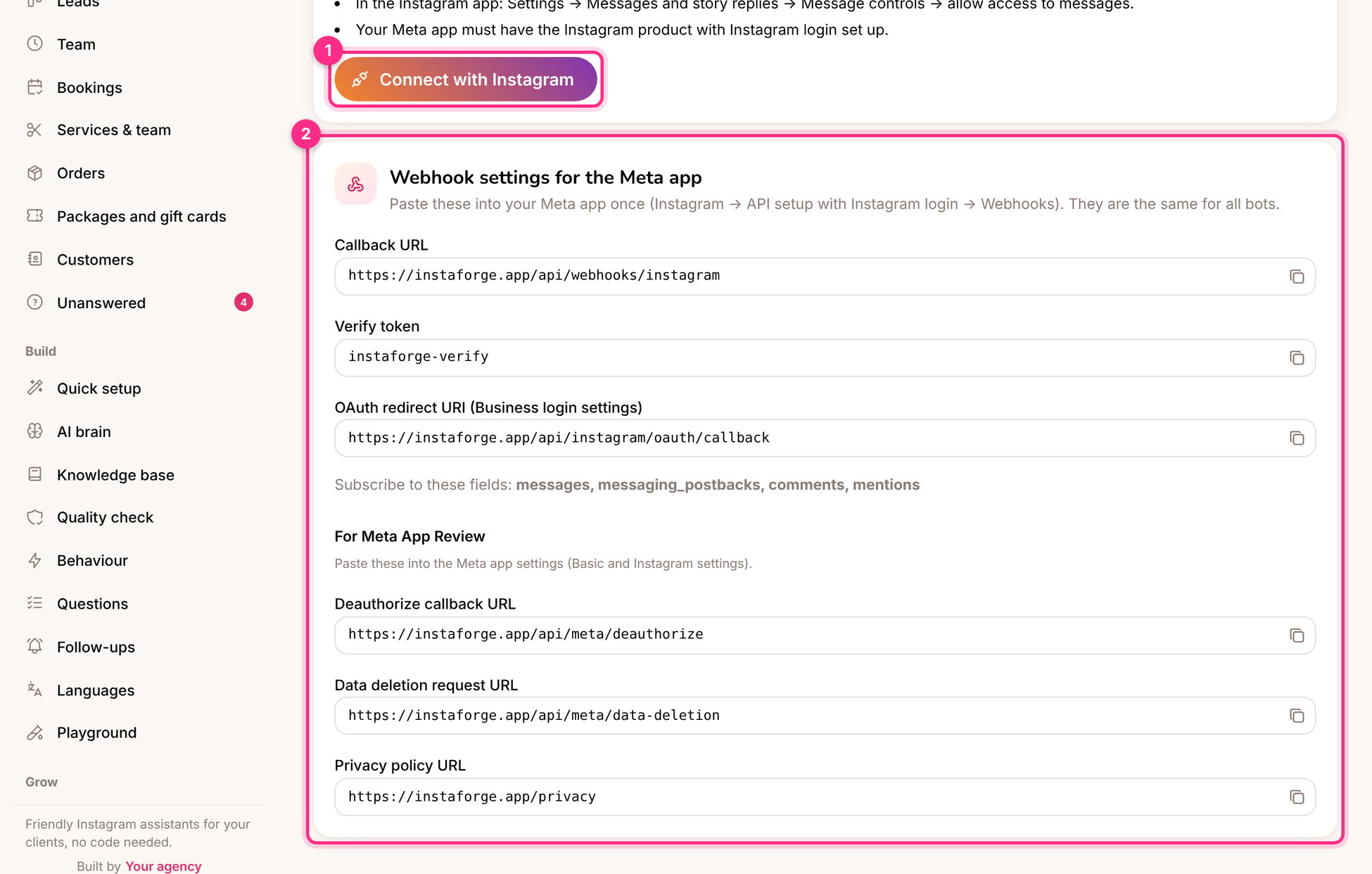
The Instagram connection page
One-time Meta app settings (admins)
The Webhook settings for the Meta app box (2) lists the callback URL, the verify token and the redirect address to paste into your Meta app once, and the fields to subscribe to. The same box lists the addresses Meta asks for during App Review: the deauthorize callback, the data deletion URL and the privacy policy.While your Meta app is in review, use the playground and the website chat. Neither needs Meta’s approval.
Troubleshooting
The login page says the app isn't available
The login page says the app isn't available
The Meta app is still in development mode and the person isn’t added as a tester. Add their Instagram account as an Instagram tester in the Meta app, or finish App Review.
Messages arrive but the assistant doesn't answer
Messages arrive but the assistant doesn't answer
Check that the bot is Live, that an AI service is connected on AI brain, and that the person hasn’t been handed to the team (the conversation shows a Human badge).
The connection stopped working after a while
The connection stopped working after a while
Instagram tokens are renewed automatically. If the client changed their password or removed the app, connect again from the same page.