

The client portal: the owner's home, approving posts, bookings and the agency's settings
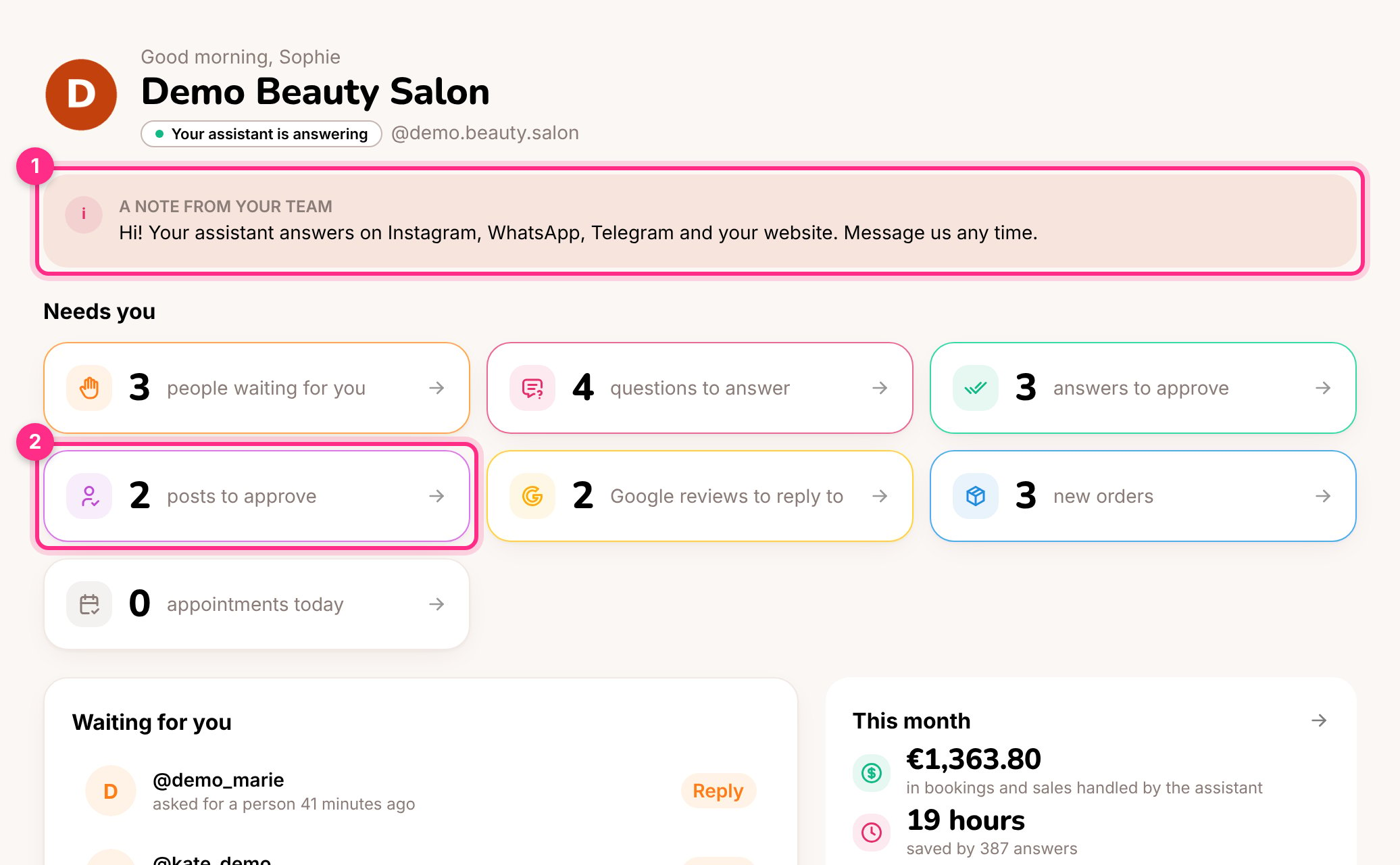
The business owner's home page: a note from the agency (1) and posts to approve (2)
For business owners
Needs you
People waiting for you, questions to answer, posts to approve, Google reviews to reply to, new orders, today’s appointments.
Conversations
Read every chat and reply yourself. Switch on “I’m handling this chat” to pause the assistant.
Bookings
See and cancel appointments, mark no-shows.
Questions to answer
Answer what the assistant didn’t know. Your answer teaches it.
To approve
Each morning the assistant drafts answers to new questions. Fill in anything in [brackets] and approve. See Answers to approve.
Earnings
Bookings and sales the assistant made this month, and the time it saved you. See Earnings.
Approve posts
Approve scheduled posts or ask for changes.
Google reviews
Check the replies drafted for your Google reviews and publish them (when your agency turns this on).
Loyalty card
See who has a reward ready and mark it used at the counter (when the card is on).
Results
Numbers and charts: people who wrote, bookings, reviews, sales.
Message templates
Write and change your own ready messages, with buttons and pictures, in every language. See Message templates.
Flows
Build and change the conversations the assistant leads step by step, on the same canvas as the agency. See Flows.
Telegram
Get new leads, bookings and requests to talk to a person in your own Telegram group, so your team can catch up there. See Telegram for the client.
Something out of date?
Use Something out of date? to tell the agency what changed (“From November we’re closed on Mondays”). They update the assistant and you’re told when it’s done.Get notifications
Turn on notifications on your phone from the home page, so you know when a customer asks for a person or books.A quick tour and tips
The first time you sign in, a card offers a short tour of your portal. Later, the compass at the top starts it again, and the light bulbs next to page titles explain what each page is for. Switch them off from the compass whenever you like. See The in-app guide.Find this guide again
The lifebuoy button at the top of your portal opens this page whenever you need it.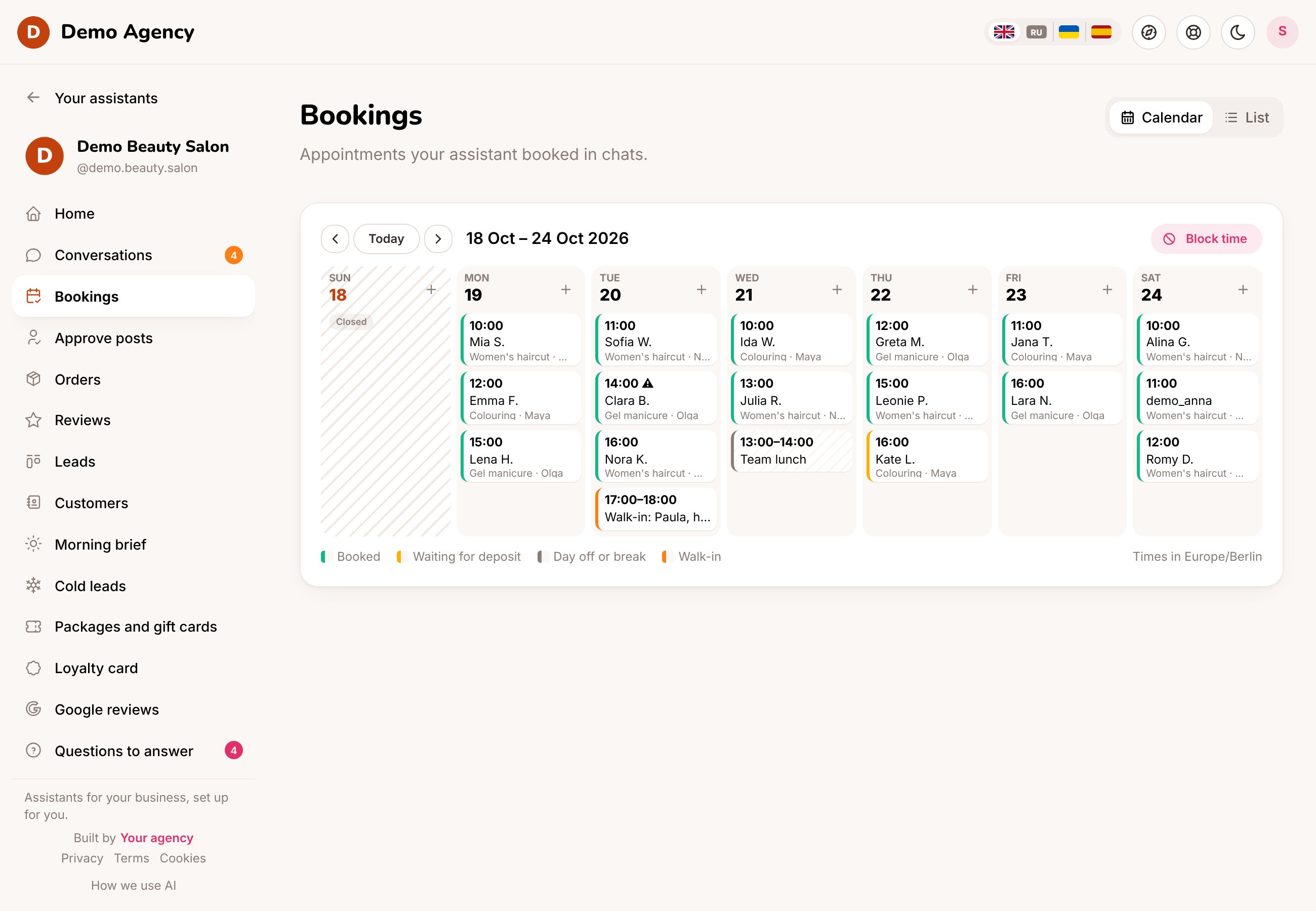
Bookings in the portal
For the agency: set up the portal
Open the client’s Client portal page (under Business in the client’s menu).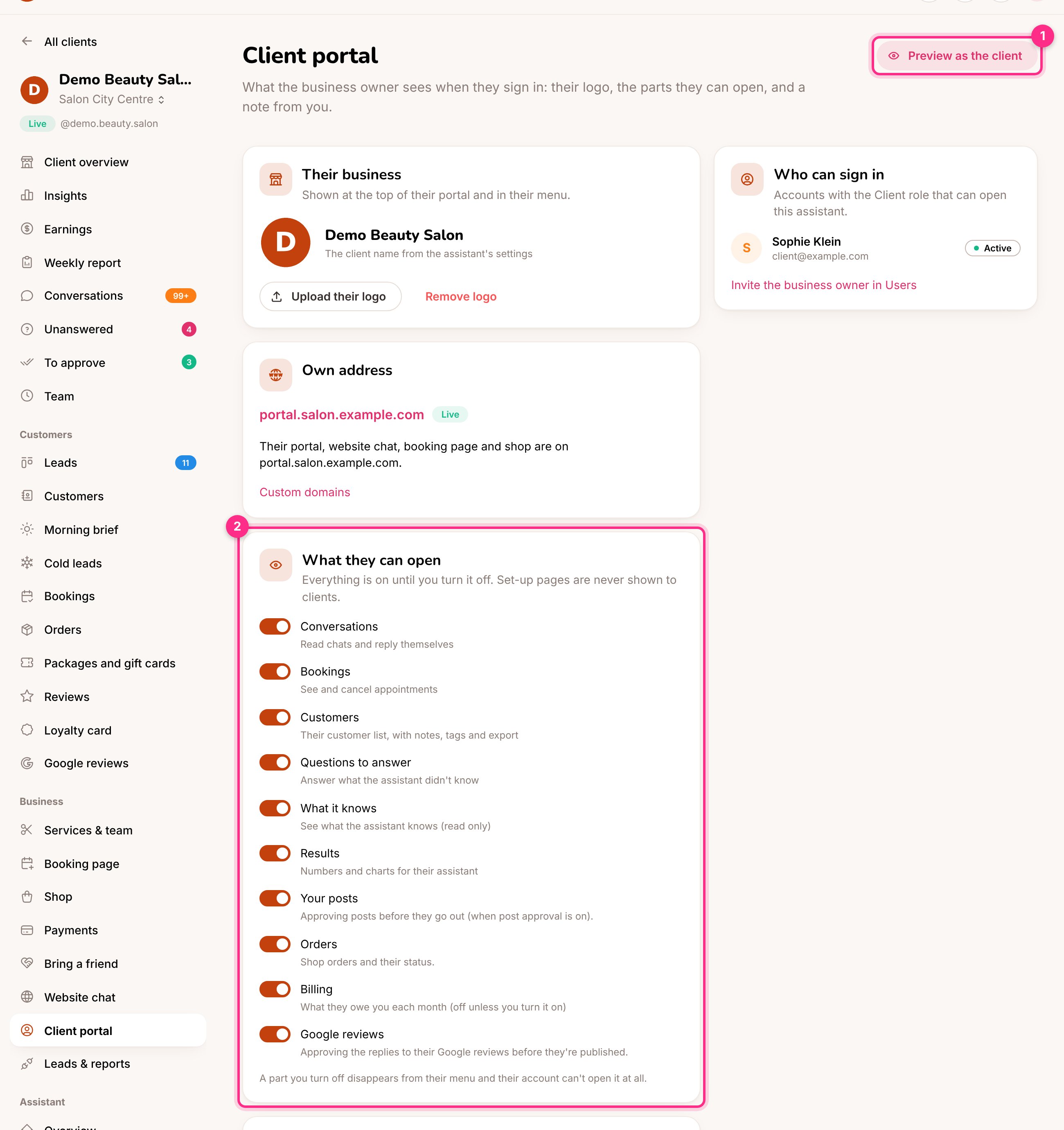
Client portal settings: preview as the client (1) and what they can open (2)
1
Upload the client's logo
Shown at the top of their portal.
2
Choose what they can open (2)
Conversations, bookings, customers, questions to answer (with answers to approve), what the assistant knows, results (with earnings), posts, orders, billing, Google reviews, message templates, flows and Telegram (the group their notifications go to, nothing else of the set-up). With message templates on, They can send templates to Meta lets the owner send their templates for WhatsApp approval and import the ones their account already has; otherwise your team does that. With flows on, Webhook steps in their flows lets the owner add, change and remove webhook steps and a flow’s webhook; off by default, so those stay with your team and keep running. Billing and Google reviews are off until you turn them on; putting a client on a paid client plan turns Billing on, since that’s where the owner subscribes. A part you turn off disappears from their menu and can’t be opened at all: an old link to it shows a short note and a button back to their home page.
3
Write a note to the client
A short message at the top of their home page: tips, news, or what you’re working on for them.
4
Give them their own address (optional)
On the Domains page, add an address like portal.their-site.com so the portal, website chat, booking page and shop carry their name. See Custom domains.
5
Invite them
The New client wizard invites the owner when you create the client (see Clients and assistants). To invite someone later, in Users add them with the Client role and only their assistants. Then click Preview as the client (1) to see exactly what they see.