

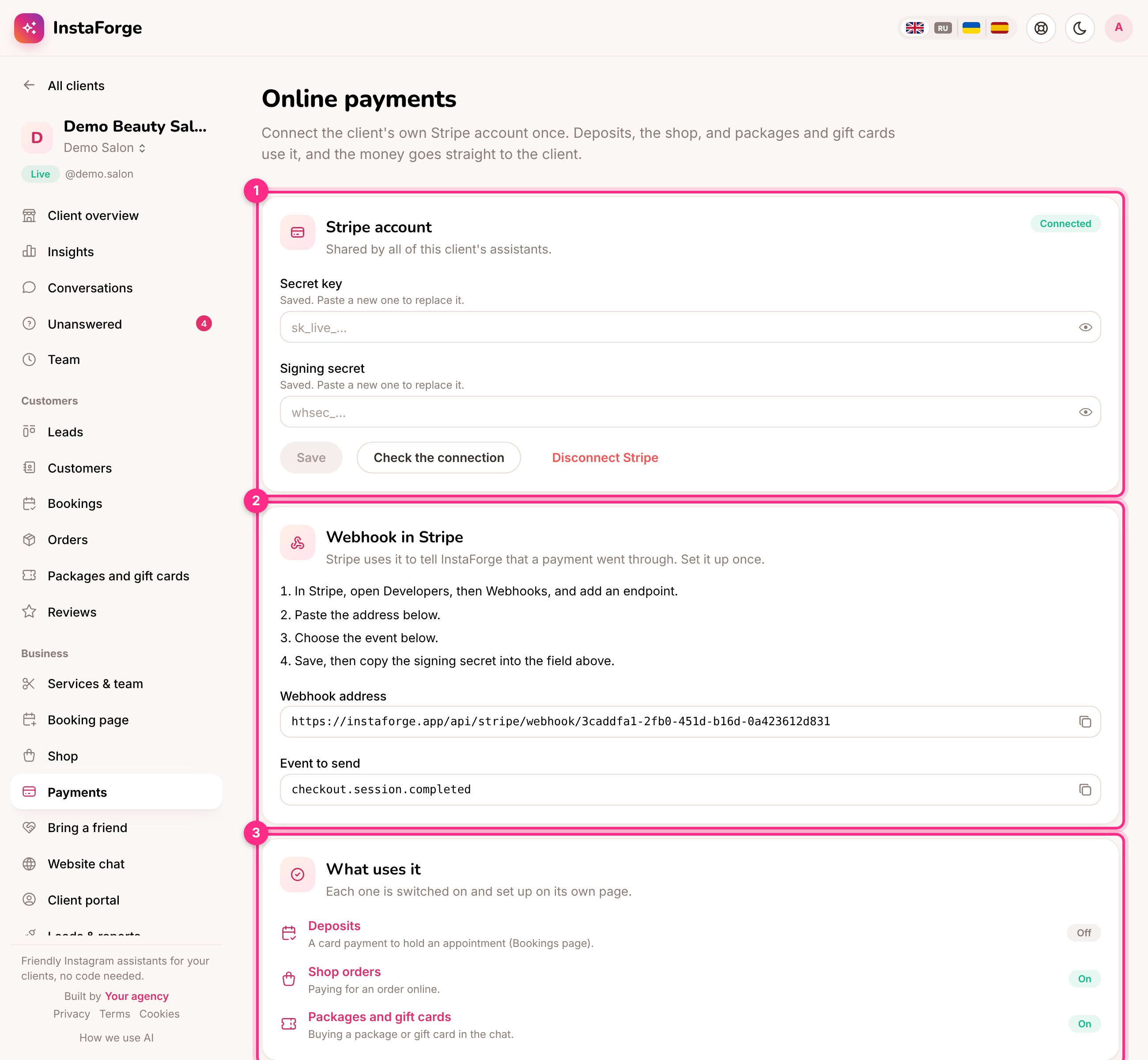
Online payments: the Stripe account (1), the webhook in Stripe (2) and what uses it (3)
Connect Stripe
In the assistant’s menu, open Business → Payments. Admins and editors can change it; the business owner doesn’t see this page.1
Paste the secret key (1)
In the client’s Stripe dashboard, open Developers → API keys and copy the secret key. A restricted key with write access to Checkout Sessions and Refunds also works. Click Save.
2
Add the webhook in Stripe (2)
In Stripe, open Developers → Webhooks and add an endpoint. Paste the Webhook address from the page and choose the event
checkout.session.completed.3
Paste the signing secret
Stripe shows a signing secret for the new webhook. Paste it into Signing secret and click Save.
4
Check it
Click Check the connection. InstaForge asks Stripe whether the key works and shows the account it belongs to.
What uses it (3)
Each feature is switched on and set up on its own page. The list shows which ones are on.
Without Stripe, shop orders are paid on pickup or delivery, and the team arranges payment for packages and gift cards.
Test mode
A key that starts withsk_test_ connects Stripe’s test mode, and the page shows a Test mode badge. Use it to try a payment with Stripe’s test cards, then replace it with the live key.
Disconnect
Disconnect Stripe removes the keys. Turn deposits off first: they can’t work without Stripe.Agency fees are separate: what a client pays the agency is set on the Billing page, with your own payment link.