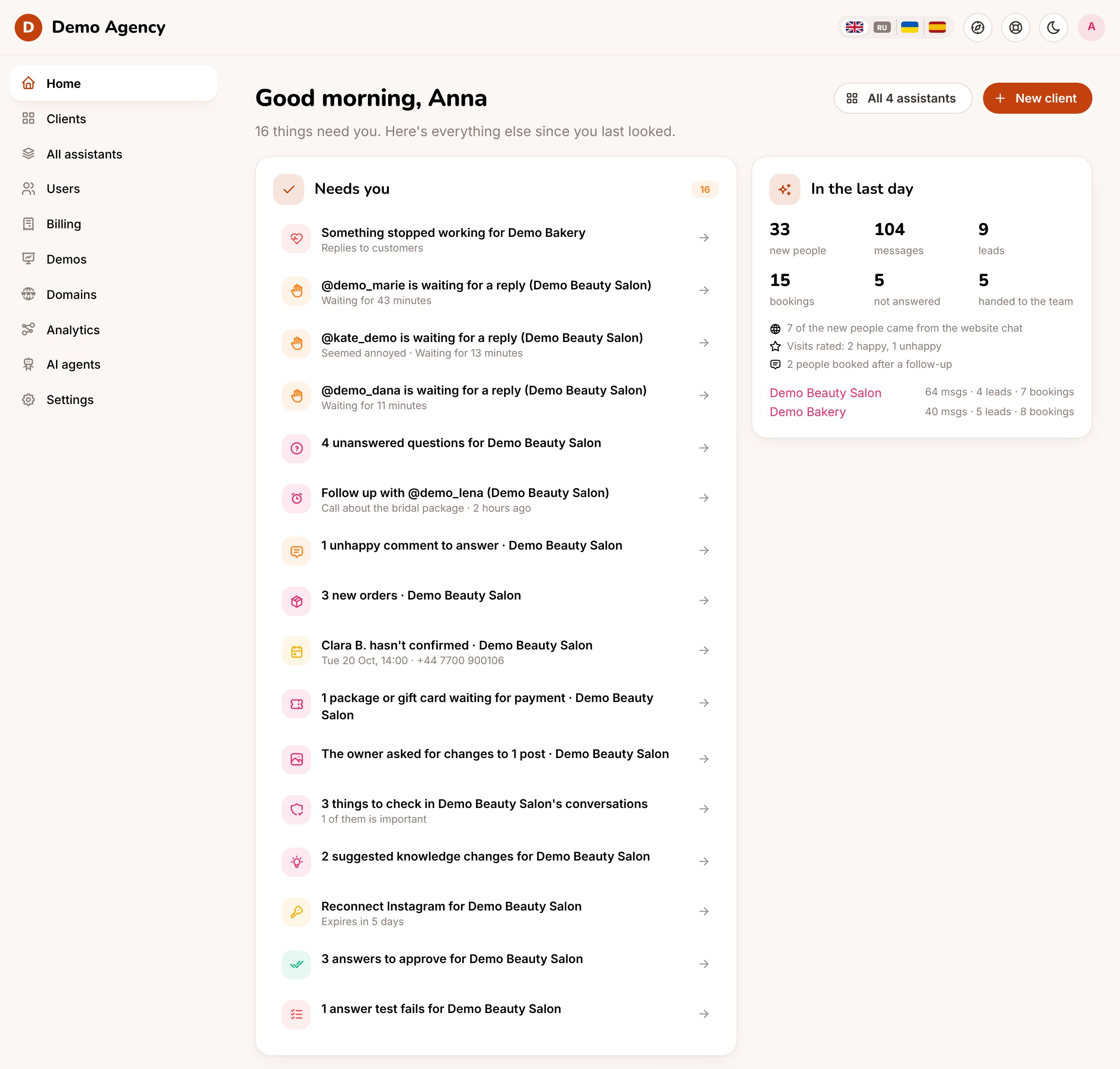
| Someone asks for a person | A customer wants a human, with a few lines on what they want. It comes again when they keep writing and nobody from the team has written in the last 30 minutes, at most every 30 minutes |
| A customer waiting for the team says it’s urgent (urgent) | Once per hand-off, as soon as they write that it’s urgent, without the 30-minute wait |
| A customer seems annoyed with the assistant (urgent) | The assistant handed the chat over, and the alert says why (Annoyed customers) |
| A customer said the chat didn’t help | A 👎 on Did this help?, with what they wrote |
| Answers to approve | Each morning when the assistant drafted new answers (Answers to approve) |
| A channel or the AI stops working | From the hourly channel check, and again when it works (admins and editors) |
| An answer test that passed starts failing | See Answer tests (admins and editors) |
| A message waits for the team during working hours | With night and weekend mode on, and how long before the assistant steps in |
| The morning brief | At the time the business chose, with messages ready to send (Morning brief) |
| A new appointment is booked | In the chat or on the booking page |
| An appointment is moved or cancelled | The person changed it in the chat or cancelled it with the link from the booking page; with a note if the old time has to be removed from the calendar by hand |
| A time given back is still in the calendar | An appointment nobody confirmed, or one whose deposit wasn’t paid, was given back, but Google Calendar, YCLIENTS or Altegio couldn’t be updated: remove it there by hand |
| The assistant couldn’t answer a question | A new unanswered question |
| The client suggests a change | From their portal |
| Someone is about to leave the 24-hour window | They asked about prices and went quiet |
| Unhappy customers | A visit was rated 1 to 3 |
| Reminders you set on leads | At the time you chose |
| Someone hasn’t confirmed their appointment | When the team is told instead of releasing the time |
| An unhappy comment | Or a comment that couldn’t be hidden |
| A new shop order | From the shop page or the chat |
| Someone wants a package or gift card | And payment is arranged by the team |
| A friend someone invited booked | Their reward is due |
| Posts are waiting for approval | For business owners |
| The owner approved a post or asked for changes | For the agency |
| The client sent their intake form | Ready for Quick setup |
| New Google reviews to reply to | With the lowest rating and a draft ready |
| Replies published on Google without approval | How many, to check them |
| Someone tries one of your demos | The first time a prospect writes to it |
| Something on the platform stops working | Site, backups, disk space (platform owner) |
| An error on the server | New, back after being fixed, or still happening (platform owner) |
| Plan payments | Paid, failed, cancelled, or an agency paused (platform owner) |