

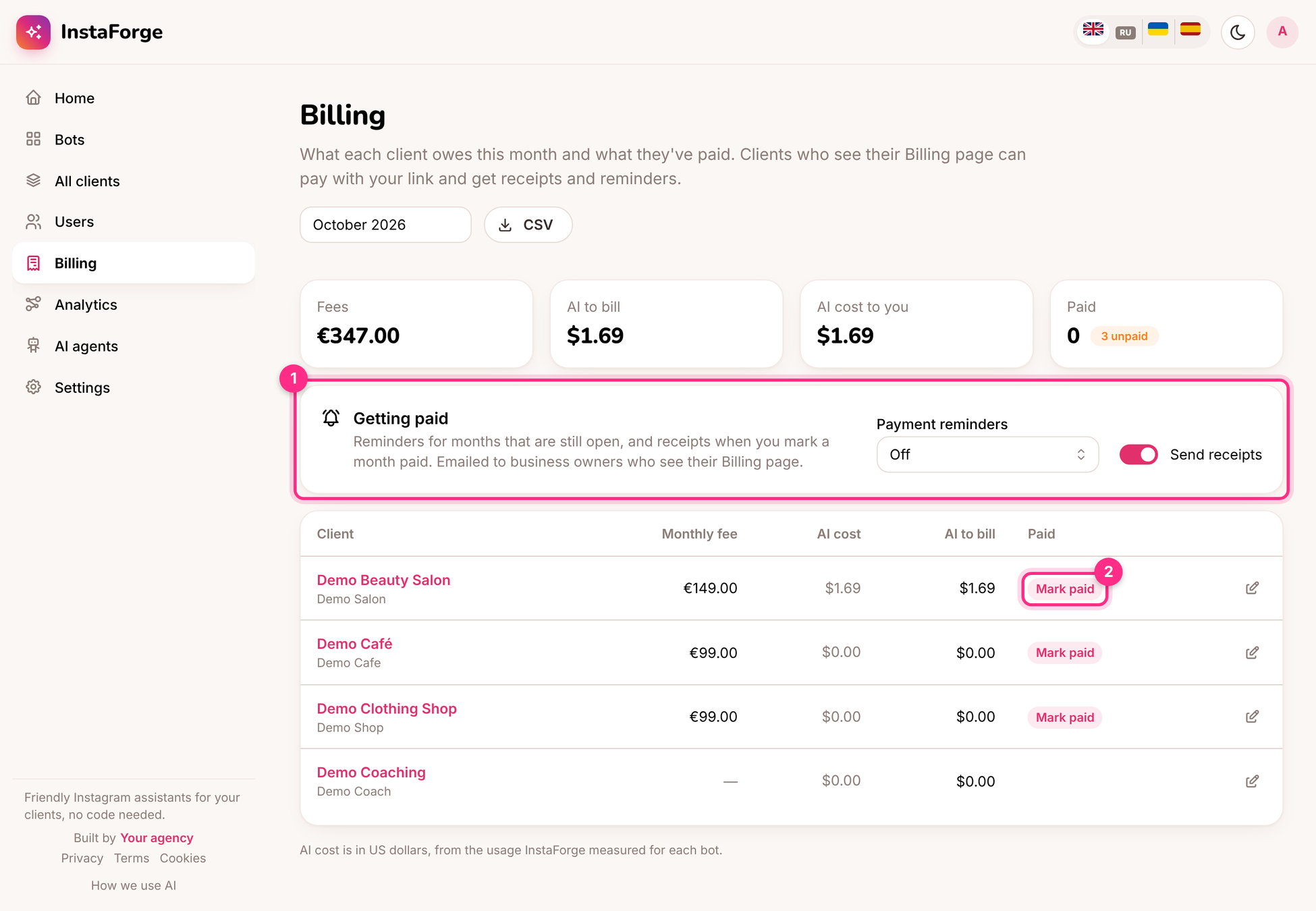
Billing: getting paid (1) and marking a month paid (2)
Set a client’s fee
Click the edit button on the client’s row and set the monthly fee, the currency, and a payment link (a Stripe payment link, PayPal, a bank transfer page). Choose whether to bill the AI cost on top.Getting paid (1)
- Payment reminders: emailed to business owners who see their Billing page, for months that are still open.
- Send receipts: when you mark a month paid, the owner gets a receipt.
- Mark paid (2): when the money arrives.
- CSV: the month’s figures for your accountant.
What the client sees
With Billing turned on in their portal, owners see what they owe, can pay with your link, and can download a statement of past months.AI cost to you is what the AI provider charges for the client’s assistant, measured per bot. AI to bill is what you pass on. When the client uses their own API key, the provider bills them directly.