

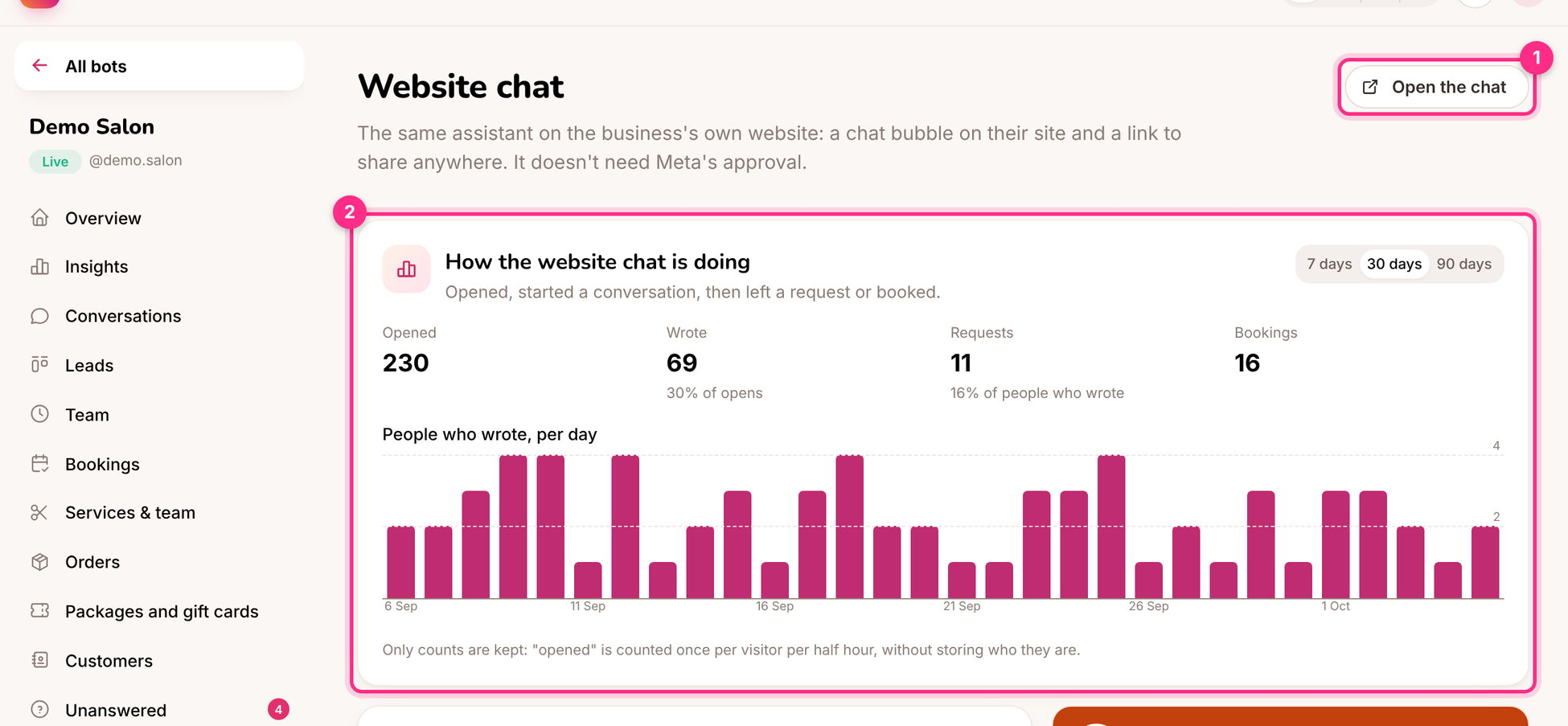
Website chat: open it (1) and how it's doing (2)
Set it up
1
Switch it on and choose the look
A colour, a title, a greeting (“Hi! 👋 Ask me about prices, times or booking.”) and the side of the screen.
2
Add it to the website
Copy the Code for the website and paste it before
</body> on every page, or in the site builder’s “custom code” setting (Wix, Squarespace, WordPress, Tilda, Shopify).3
Or share the link
Every website chat also has its own page, for example
instaforge.app/c/demo-salon. Use it in emails, on Google Maps, or as a QR code.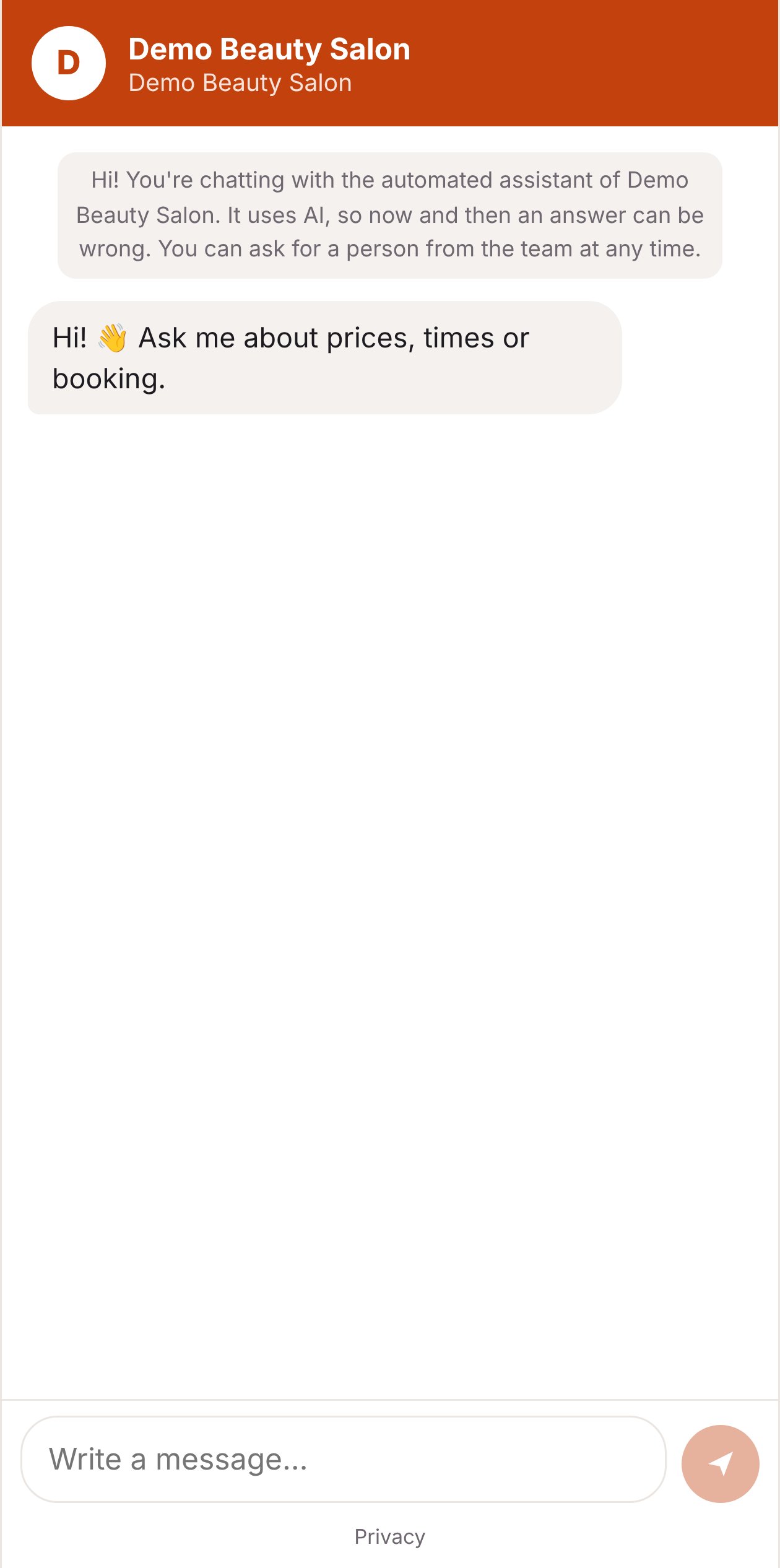
The chat link on a phone
How it works
- Conversations appear in Conversations with a Website badge; you can take over and reply there.
- Visitors are told they’re chatting with an automated assistant, and see the privacy policy.
- No account and no cookies: the browser keeps a private conversation id.
- The panel (2) shows how many people opened the chat, wrote, left a request and booked.