

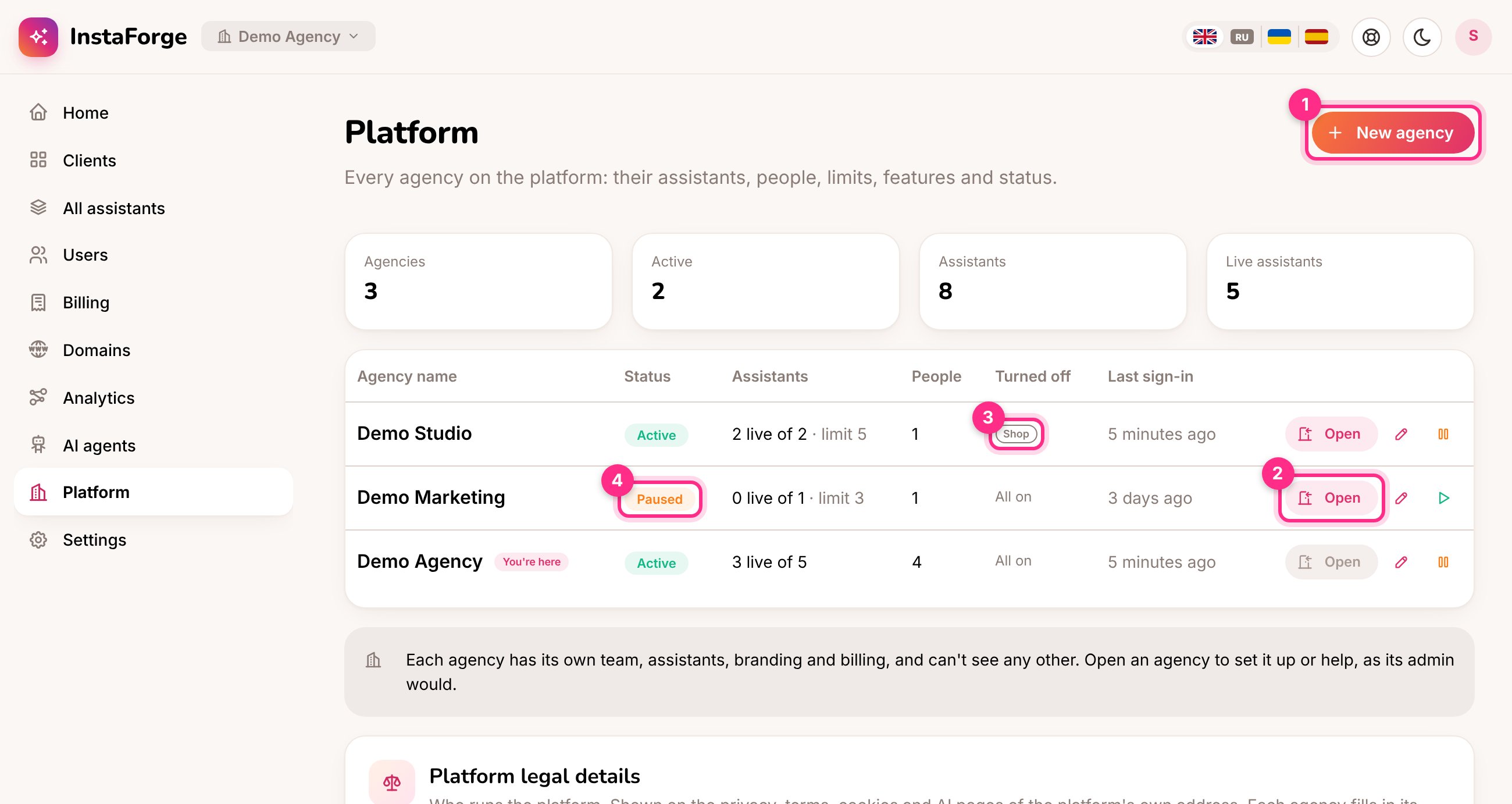
The Platform page: add an agency (1), open one (2), features turned off (3), a paused agency (4)
Add an agency
1
Click New agency
On the Platform page, click New agency (1).
2
Name it and invite its first admin
Type the agency’s name and its first admin’s name and email, and pick their language. The admin gets an invitation by email to choose a password, then invites the rest of their team on the Users page.
3
Set the limits
Set an Assistant limit (leave it empty for no limit) and turn off any features the agency doesn’t get. Click Create and invite.
Assistant limit and features
Click the pencil next to an agency to change its name, assistant limit, features or your own notes about it.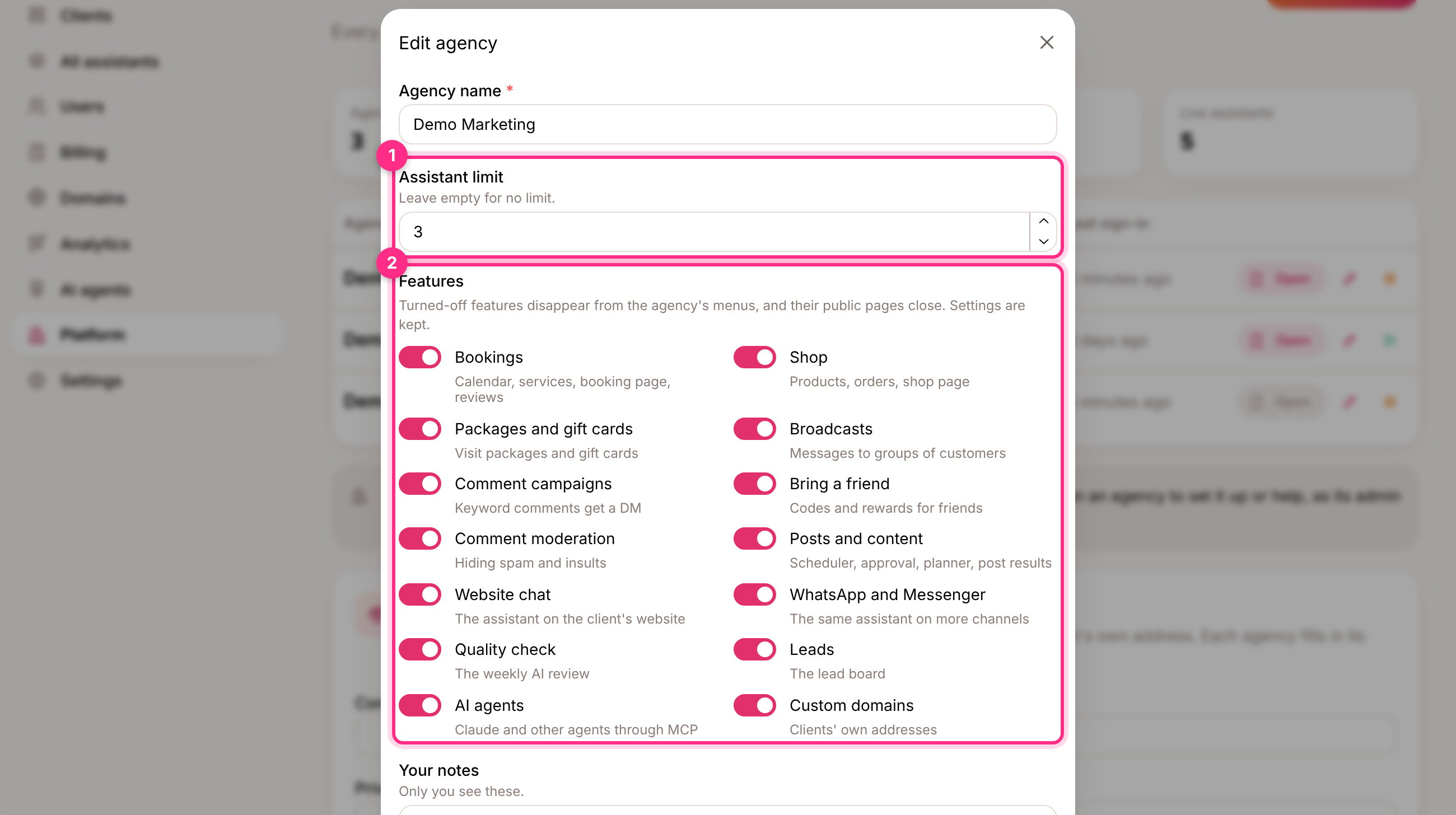
Editing an agency: the assistant limit (1) and its features (2)
- Assistant limit: the limit counts assistants, not clients, so a client with two Instagram accounts uses two. Once an agency reaches it, New client and Add an assistant are greyed out, and the clients list shows how many they have of how many they may have.
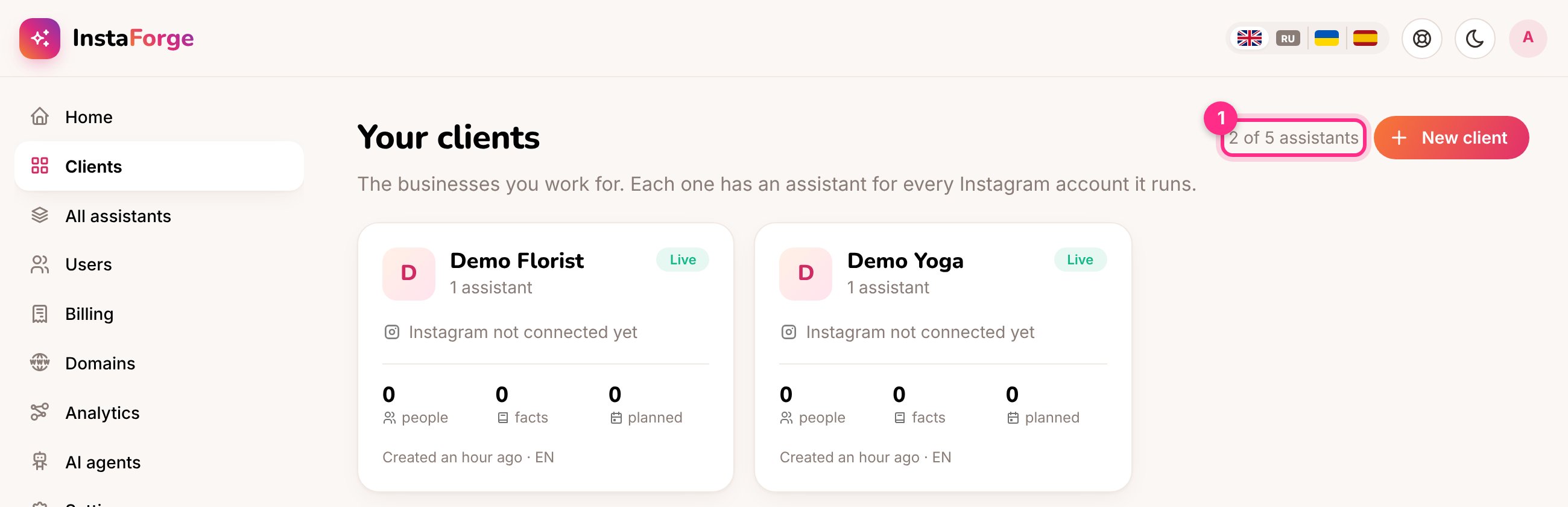
An agency admin sees their assistant limit on the clients list
- Features: a feature that’s turned off disappears from the agency’s menus and its public pages close (for example the shop page). The agency’s settings for it are kept, so turning it back on restores everything.
Open an agency
Click Open (2) to work inside an agency as its admin would: set up its first clients, check something for them, or fix a problem. The agency you’re in shows at the top left, next to the logo. Click it to switch to another agency or go back to all agencies.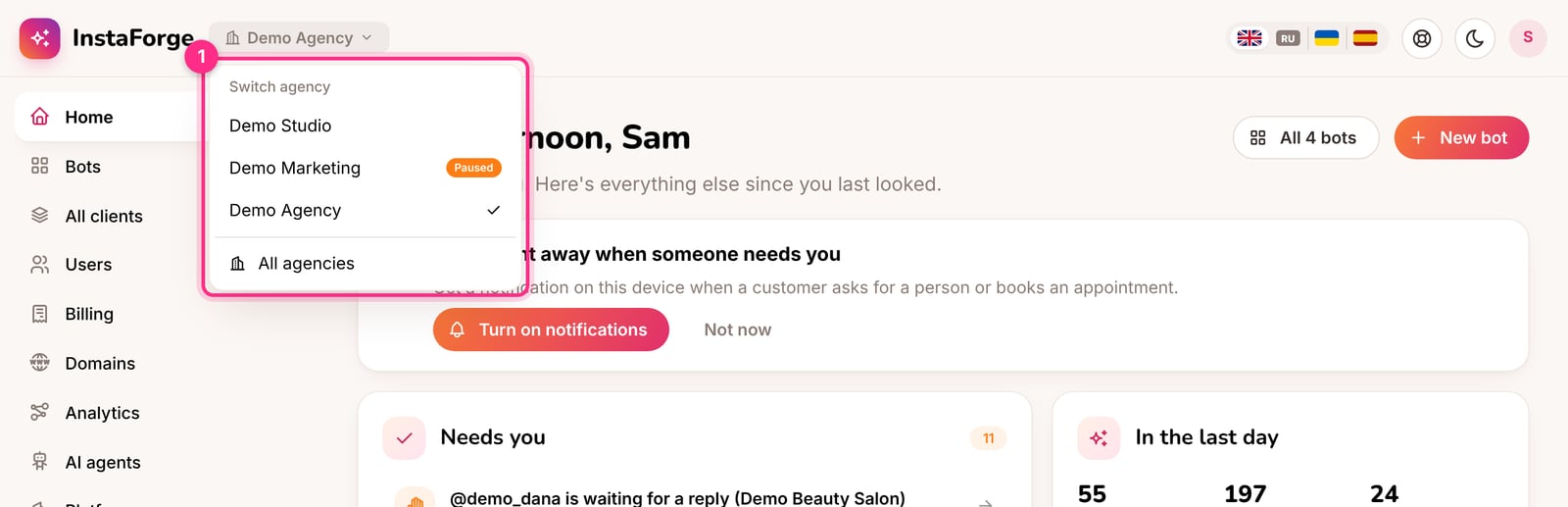
Switching agency from the top of any page
Pause an agency
Click the pause button next to an agency, for example when they stop paying. While it’s paused (4):- its team is signed out and can’t sign in,
- its assistants stop answering on Instagram, WhatsApp, Messenger and the website,
- its booking pages, shop and website chat close.
What stays with the platform owner
What happened to the agency that was there before?
What happened to the agency that was there before?
Everything that existed before agencies (the team, clients, assistants, branding and settings) became the first agency. Nothing changed for its people. Rename it on the Platform page if you like.
Can an agency admin see other agencies?
Can an agency admin see other agencies?
No. Clients, assistants, people, conversations, numbers and settings of other agencies look like they don’t exist.
Can someone belong to two agencies?
Can someone belong to two agencies?
No, an email address belongs to one agency. Use a different address for the second one.