

Add dates to a customer
Open Customers, click a customer and scroll to Important dates. Click Add a date, choose what it is, pick the date and add a short note if it helps.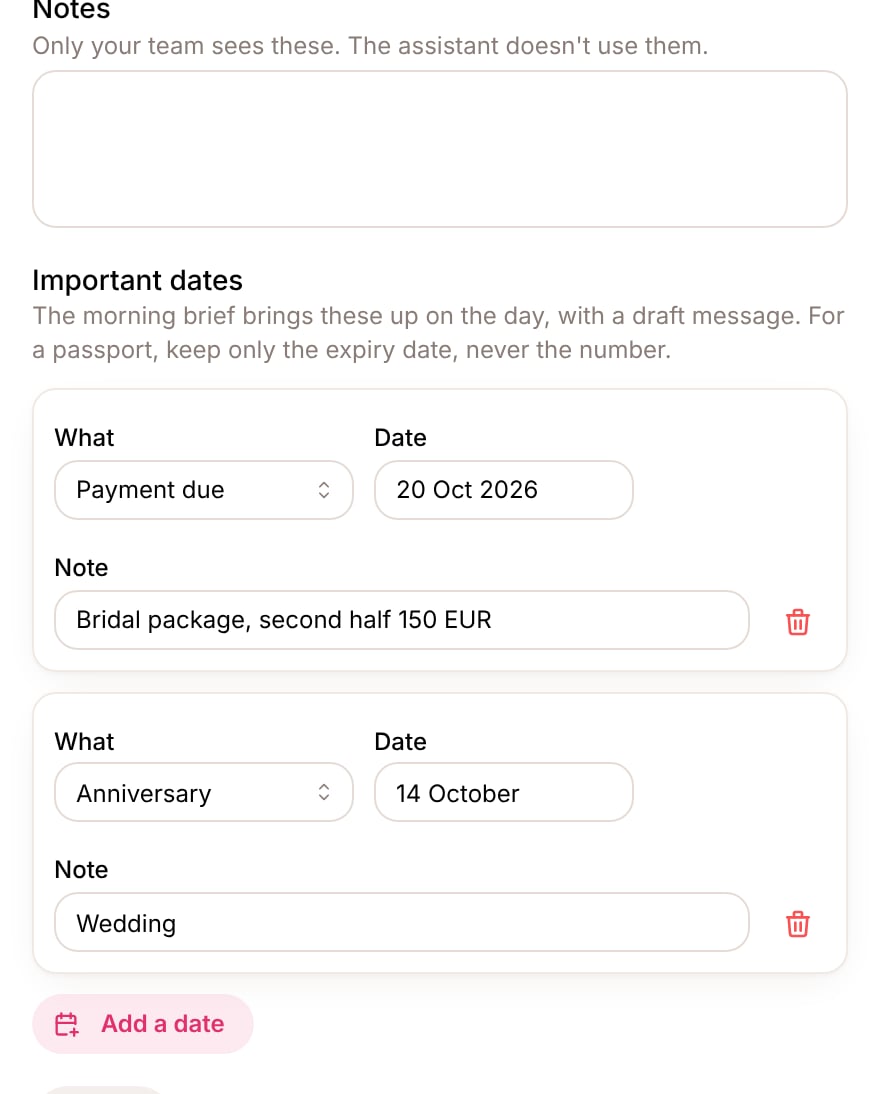
Important dates on a customer's card
Yearly dates show only the day and month, so the year doesn’t matter.
The morning brief
Switch it on in Morning brief → Settings and choose the time it arrives, in the business’s time zone. The settings are for the whole business.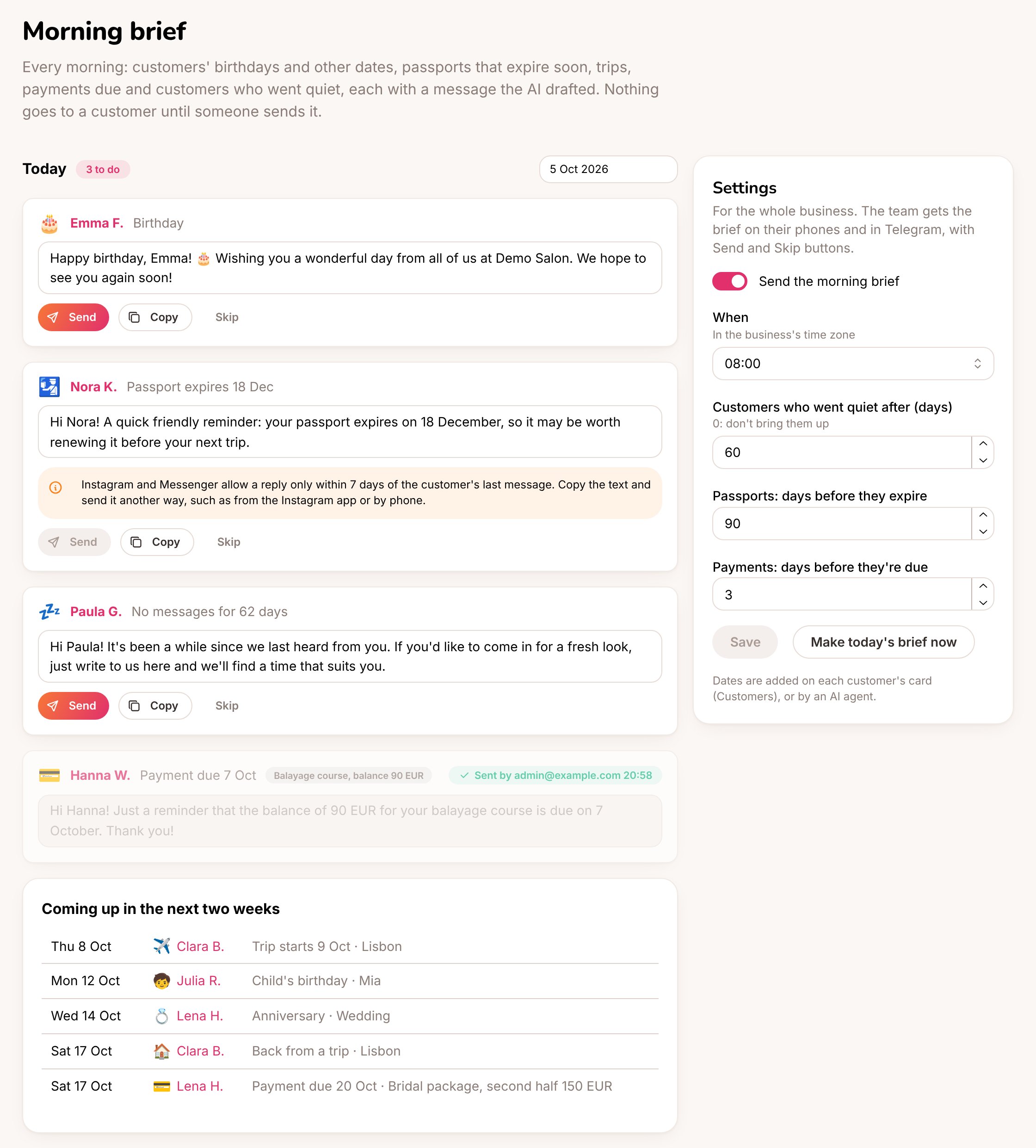
Today's brief, what's coming up, and the settings
- Send sends it in the customer’s chat, as a message from the team.
- Copy copies the text, to send it some other way.
- Skip takes it off the list.
Customers who went quiet
Customers who haven’t written for 60 days (you can change it; 0 turns it off) come up once, with a friendly check-in. People who asked for no marketing messages are left out. At most 10 a day.When a message can’t be sent from here
Each channel has its own rules, and the brief follows them:
When Send isn’t possible, the item says why. Copy the text and send it another way, for example from the Instagram app or by phone.
The business owner sees the brief in their portal too (with the Customers section on) and can send or skip items.
On your phone and in Telegram
The people who answer chats get a notification with how many items there are. In Telegram each item arrives as its own message with Send, Skip and Edit buttons, so a manager can work through the brief from their phone. Edit opens the item on the page. Turn it off under Settings → Notifications (The morning brief).Telegram alerts need the agency’s Telegram bot. See Alerts and notifications.