

Write a template
Open Message templates in the assistant’s menu (under Assistant) and click New template.1
Name it and give it a category
The category is your own label, such as offers, reminders or bookings. The list can be filtered by it.
2
Write the message
Write it in the main language, then switch the flags to write the others, or click the translate button to fill the empty languages with the assistant’s AI. Variables in double braces are filled in for each person:
Click a variable to copy it, then paste it into the text. Give an example value for each one you use: the preview shows it, and WhatsApp asks for it.
3
Add an image, video or file (optional)
Upload a JPEG, PNG or WebP image, an MP4 video or a PDF, or paste the web address of one. Uploaded files are kept at a public address, so Instagram, Messenger, WhatsApp and Telegram can fetch them. A web address must be a public
https:// address.A client can upload up to 30 files an hour for its templates, and the agency up to 30 an hour for its library. Uploads for a client stop once the files kept for its assistants (posts, the shop, the test chat and the portal logo included) reach 2 GB, and uploads to the agency’s library stop once the agency’s own files (the library and its logos) reach 2 GB; a web address still works then. A file that no template, post, flow, knowledge entry, portal, broadcast, saved version or built project uses any more can be removed from the server a week or more after it was last used, and then stops counting.4
Add buttons (optional)
- Reply: a tap comes back as the person’s answer, and a flow can go a different way for each button.
- Link: opens a web page.
- Call: dials a phone number.
5
Add a header or a footer (optional)
The header is a first line, which WhatsApp shows in bold. The footer is a last line in small print, such as how to stop the messages.
The preview
The preview shows the message as each channel draws it, with the example values filled in: Instagram, WhatsApp, Messenger, Telegram and the website chat. Under it are the channel’s limits and what the channel changes about this message:
A number on a channel’s tab counts what will be cut there. On every channel except the website chat, link and call buttons become lines in the text.
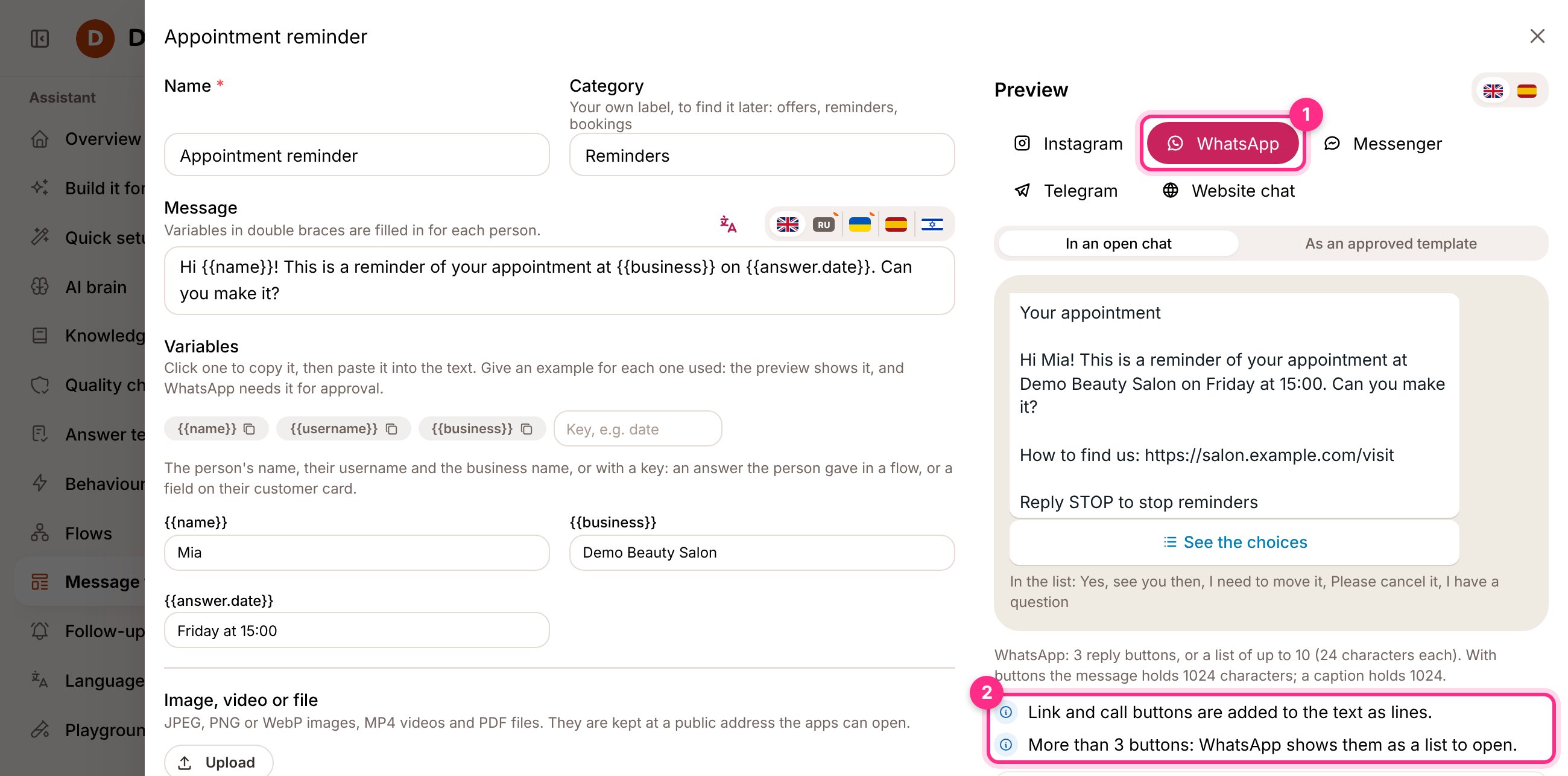
An appointment reminder in the editor, with the preview on its WhatsApp tab (1) and what WhatsApp changes about it (2)
In the client portal
Business owners see Message templates in their portal and can write and change their own client’s templates, never another client’s. You can hide the page in the client’s Client portal settings.The agency’s library
In Settings, Message templates holds your own templates. Click the copy button on one and pick a client to give that client a copy to change. On an assistant’s Message templates page, Copy from your library does the same for that client.WhatsApp approved templates
WhatsApp lets a business write freely for 24 hours after the customer’s last message. After that, and to write first, only a template approved by Meta can be sent.Send a template for approval
1
Open the template and its WhatsApp tab
The tab shows the approval of each language: not sent, waiting for Meta, approved, rejected with Meta’s reason, or paused.
2
Choose the category and the languages
Marketing for offers and news, Utility for orders, bookings and account updates, Authentication for one-time codes.
3
Click Send to Meta for approval
Meta usually answers within minutes. The status changes on its own when Meta answers, and Check WhatsApp status asks Meta again.
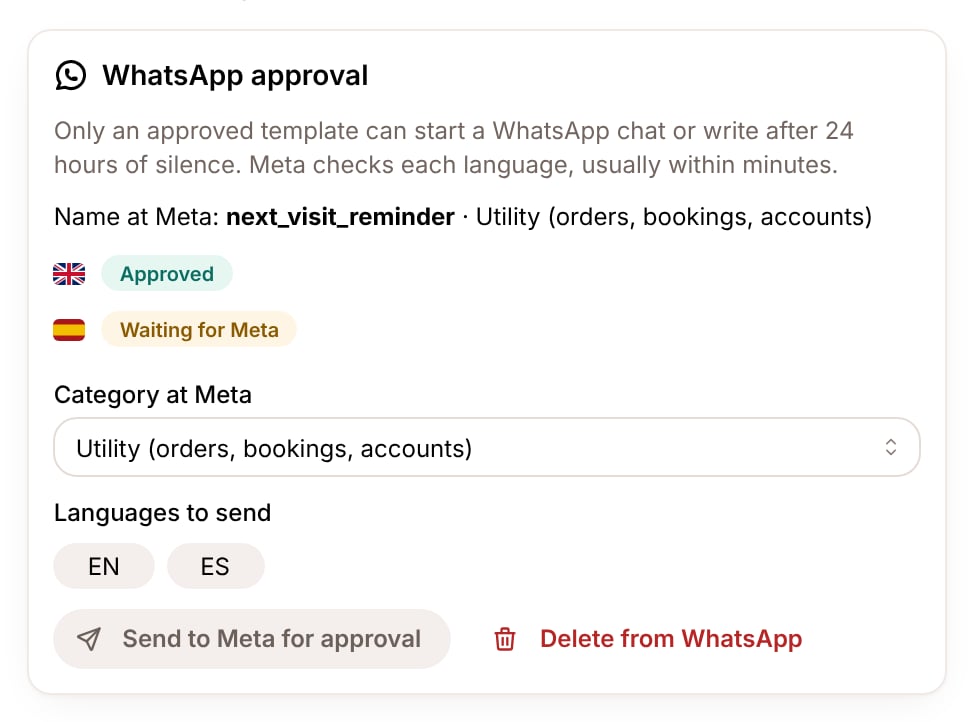
A template approved in English and waiting for Meta in Spanish
Import the templates the account already has
Import from WhatsApp adds the templates already in the client’s WhatsApp account to the library, with their status. Their numbered variables come in as{{field.param1}}, {{field.param2}} and so on: replace them with {{name}} or another variable and the approved template keeps working, as long as the wording stays the same.
Where approved templates are used
- Team replies after 24 hours: pick the template on the Channels page, under WhatsApp. A team member’s reply to a quiet WhatsApp chat goes out as that template, with the person’s name and the business in its variables.
- Rebooking reminders: the same template from the Channels page.
- Broadcasts: pick an approved template for WhatsApp customers whose 24 hours are over.
Meta reports status changes to the WhatsApp webhook as
message_template_status_update. In your Meta app, subscribe the webhook to that field as well as to messages, so the status changes on its own.Sending templates to Meta and importing them is up to the agency. To let a client do it themselves, turn on They can send templates to Meta in the client’s Client portal settings.